
Micro:car support
Before Use
- Check that you have the Chassis, Car Shield, Line and Colour Sensor and BBC micro:bit ready before starting.
- Make sure you are charging the Car Shield only, not the micro:bit. The car does not need to be assembled to charge. You are only charging the Car Shield.
- Prepare your printed map in advance and avoid glossy finishes, as they can affect the Line and Colour Sensor.
- Keep Car Shields separated during charging so they do not magnetically connect. This impacts Car Shields ability to charge.
- See Bit Kit Micro:car Equipment Setup Guide for further assistance
Quick Start
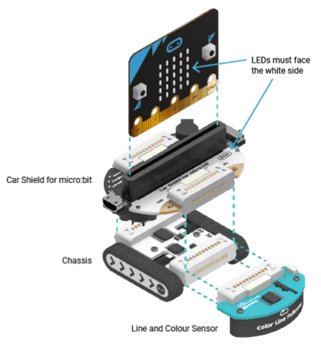
- Place the chassis with the arrows on the wheels facing forward, then attach the Line and Colour Sensor to the front.
- Attach the Car Shield with the white side facing forward and make sure the power switch is off.
- You will need to charge the Car Shield fully before first use. Do not attach the micro:bit (yet).
- Calibrate the colour line follower before using the map.
- Insert the micro:bit only after charging and calibration are complete, then download the required program and prepare the map files.
Bit Kit micro:car
Assembly and Charging
- Place the chassis so the arrows on the wheels are facing forward.
- Attach the line and colour sensor to the front of the chassis.
- Attach the Car Shield, ensuring the white side is facing forward, then switch the power off.
- Do not insert the micro:bit yet. This should be added after charging and calibration.
- Charge only the Car Shield by connecting a 5V micro-USB cable to the charging port on the micro:car.
- A green light shows the Car Shield is charging. The light turns off when charging is complete.
- A full charge takes approximately 45 minutes and provides around 25 minutes of runtime.
- A blue light indicates the micro:car is powered on, and a yellow light indicates a low battery.
- Keep Car Shields separated while charging so they do not magnetically connect to each other.
- The USB port on the micro:car is for charging only. Programs must be downloaded directly to the micro:bit.
Calibration
-
Leave the micro:bit out of the micro:car during calibration, then switch the micro:car on.
-
Press and hold the Line Calibrator button for about 2 seconds until the green light turns on, then release the button.
-
Place the light sensor over the black section and press the Line Calibrator button once. The light will flash quickly for a few seconds.
-
When the light stops flashing, lift the car and place it on the white section.
-
Press the Line Calibrator button twice. The light will flash again more slowly.
-
Once calibration is complete, the micro:car is ready for use.
- Watch Calibration Video
Maps and Downloads
-
Download the map files using the link below. Select Micro:car A3 maps.
-
For best results, print on 250–300 GSM paper in colour. You can print on standard A3 paper, but may require protection.
-
Laminate can be used to protect standard paper maps. Matte finish preferable to avoid Line and Colour Sensor performance.
Helpful Tips
-
Store each micro:car in its box to help protect the parts and keep each kit together.
-
When charging the Car Shield, keep the chassis and colour line follower in the box. They are not needed for charging.
-
A multi-USB charging hub can be useful when charging multiple Car Shields for classroom use.
-
Students can complete much of the charging, assembly and calibration themselves with the support materials provided.
How can I order more cars?
PRA Technology are our preferred supplier. You can order directly here.
iPad Users
Watch these videos to support use of the micro:bit with an Apple iPad.
It is recommended that when using an iPad with the program, a keyboard attachment is used. This is particularly important for input of any text based content, and reduces student frustration when the screen keyboard overlays on their work screen.
FAQs
Which USB port should I use?
The micro:car and micro:bit have two separate USB ports. Use the USB port on the micro:car only for charging the Car Shield, and use the USB port on the micro:bit only for downloading programs.
Why am I seeing an OSError message on the micro:bit?
This usually happens when a micro:car program is running while the micro:bit is not inserted into the micro:car. It can also occur if components such as the line follower are not connected correctly.
Why are colours not being detected correctly?
Repeat the calibration steps. Over time, the sensor may need recalibration, especially if performance becomes inconsistent.
Why does the micro:car stop during a program?
Recharge the micro:car fully. This can happen even if the low battery light has not appeared.
What should I do if the micro:car is not charging properly?
Use a USB port that provides a stable connection and a charging cable that has already been confirmed to work with other devices. Frequent disconnections from a laptop or USB hub can affect battery performance and may damage the battery over time.
How can I reset the charging behaviour?
With the power switched on, connect and disconnect the micro:car shield several times. This may reset the charging status and restore normal charging behaviour. Once the green charging light appears, leave the micro:car connected until fully charged.
Should I fully discharge the battery first?
If charging performance seems inconsistent, you can fully discharge the battery by running a program with music and flashing lights, then recharge the micro:car until the charging light turns off.
What should I check if the wheels are not moving smoothly?
Remove the rubber treads and check the axles for hair, lint or carpet fibres. Remove any debris you find.
How can I test whether the issue is with the program or the motor?
Try a newly flashed micro:bit running a simple program that drives the micro:car straight for 30 seconds.
What if the motor still seems tight or uneven?
Use a jeweller’s size 0 Phillips head screwdriver to slightly reduce the tension on the screws holding the chassis PCB to the base.
Contact Support
If you have tried the troubleshooting steps above and still need help, please contact the CME DigiTech Program for assistance.